

Applitools & Visual AI: Revolutionizing UI Testing
Applitools is an AI-powered end-to-end testing platform that combines visual, functional, API, and accessibility testing in a unified way. Applitools - AI-Powered End-to-End Testing
Introduction
In modern software development, it’s not enough for an app to just work — it also needs to look right on all browsers and devices. Traditional automated tests focus mostly on how features work (like clicking buttons or checking data), but they often miss visual problems like:
- Broken layouts
- Misaligned text or buttons
- Missing images
- Small style changes that affect the look and feel
That’s where Applitools comes in. It uses something called Visual AI to help you automatically find visual bugs that might affect the user experience.
In this article, we’ll look at:
- What Applitools is
- How Visual AI works in testing
- Key features of the tool
- How to integrate it into your workflow
- Benefits and potential challenges
- Best practices for using it effectively
What Is Applitools?
- Applitools is an AI-powered end-to-end testing platform that combines visual, functional, API, and accessibility testing in a unified way.
- Its core product is Applitools Eyes, which provides intelligent visual validation of web pages, mobile apps, and UI components.
Understanding Visual AI & Visual Testing
What Is Visual AI?
Visual AI refers to applying computer-vision and machine learning techniques so that a system “sees” and reasons about images like a human would. It goes beyond raw pixel comparison to understand what is meaningful or relevant.
In the context of UI testing, Visual AI helps identify which visual changes are significant (e.g. an element shifting, a missing image) and which are irrelevant (minor rendering differences, anti-aliasing artifacts).
What Is Visual Testing?
Visual testing is the process of validating the rendered UI against an expected reference (baseline) to catch visual bugs—things that may look off to the user but slip past purely functional tests (for instance, misalignment, font or colour changes, overlapping components). Automated Visual End-to-End Testing: Catch UI Bugs Faster
While functional testing ensures "does it work?", visual testing ensures "does it look right?" or "is the presentation correct?"
Traditional visual regression tools often compare images pixel-by-pixel, which makes them brittle (sensitive to small rendering differences). Visual AI addresses this by using smarter comparison logic.
How Applitools Works
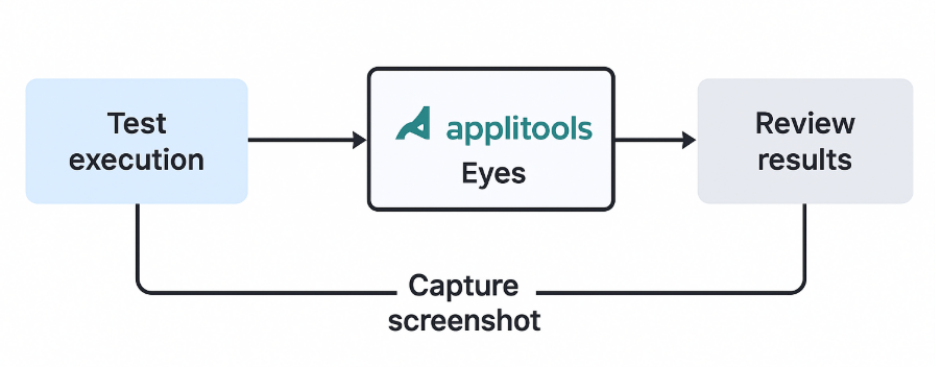
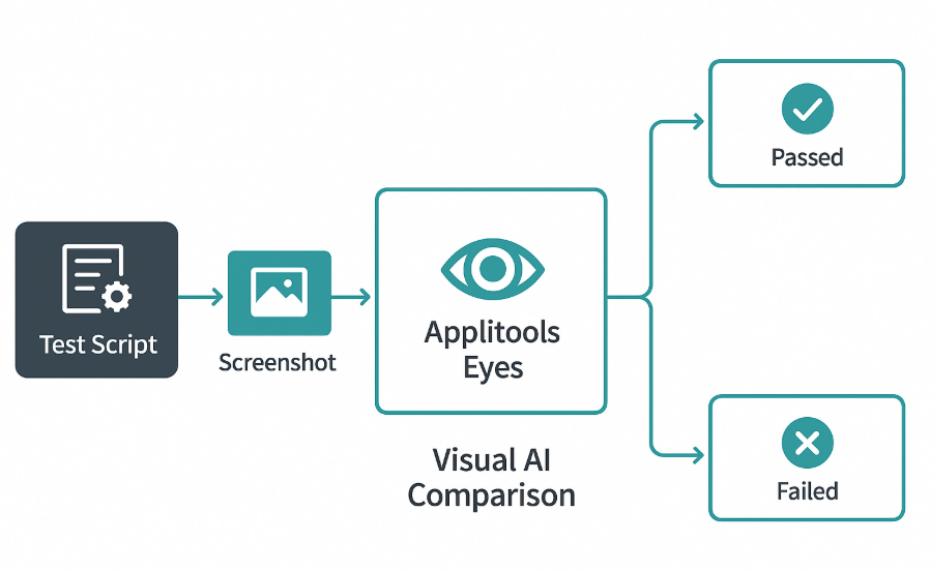
Here’s a simplified flow of how Applitools integrates visual testing into your test suite:
- Baseline Creation: On the first run (or when changes are approved), Applitools stores a screenshot (or set of screenshots) as the reference baseline.
- Capture During Tests: During subsequent test executions, Applitools captures screenshots (full page or specific regions) of the UI under the test.
- AI-Powered Comparison: The new images are compared against the baseline using Visual AI. The system flags differences that appear meaningful and ignores insignificant discrepancies (rendering noise, minor shifts).
- Review & Approve: Differences are presented in a dashboard. QA engineers or developers review them, accept the change (i.e. update baseline), or report as a defect.
- Maintenance & Self-Healing: Applitools provides features to handle baseline updates, ignore dynamic regions, and reduce maintenance overhead.
- Parallel Execution via Ultrafast Grid: To run across many browser/viewport/device combinations efficiently, Applitools re-renders the screens in its Ultrafast Test Grid rather than launching many physical browsers. This accelerates cross-browser visual testing.
In sum, by integrating a few calls in your test scripts (or via SDKs), you “add eyes” to your tests to look at UI rendering intelligently.
Key Features & Capabilities
Here are some of the standout features of Applitools:
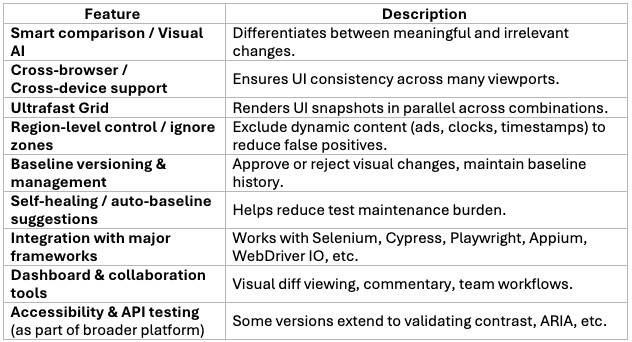
These capabilities make Applitools more than just a screenshot diff tool—it’s a comprehensive visual validation layer.
Benefits of Using Applitools
- Catch visual bugs early: Visual issues that slip through functional tests are caught before release.
- Reduce false positives: Because of intelligent comparison, fewer irrelevant failures are flagged.
- Lower test maintenance: Features like ignore zones, versioning, and self-healing reduce overhead.
- Better cross-browser coverage: You can validate appearance across many combinations with less effort.
- Faster feedback loops: Integrates into CI/CD pipelines so developers get visual validation quickly.
- Higher confidence in UI releases: Particularly useful for UI-heavy, customer-facing applications.
According to Applitools, test authoring speed improves, and maintenance overhead drops with Visual AI.
Challenges & Considerations
- Learning curve: Teams unfamiliar with visual testing need time to adopt best practices.
- Dynamic content: Pages with ads, animations, and dynamic elements can cause noise—requiring careful region control.
- Baseline management overhead: There is always some maintenance when UI changes are legitimate.
- Cost: For small teams or projects, licensing costs may be a consideration.
- Edge cases / false negatives: Visual AI isn’t perfect—subtle differences or layout shifts might slip through or be misclassified.
- To mitigate, adopt patterns like small snapshots, region ignores, and incremental visual testing to manage drift.
Integration Example (Selenium + Applitools)
Here’s a simplified conceptual flow (in pseudocode) of integrating Applitools Eyes with Selenium:
// Start a new Chrome browser session
WebDriver driver = new ChromeDriver();
// Create an instance of Applitools Eyes for visual testing
Eyes eyes = new Eyes ();
// Set your Applitools API key to authenticate eyes.setApiKey("");   try {
// Start the Eyes test session
// Parameters: WebDriver, App name, Test name, Viewport size eyes.open(driver, "My App", "Login Page Test", new RectangleSize(800, 600));
// Navigate to the login page of your web application
driver.get("https://myapp.example.com/login");

// --- Functional testing part ---
// Find the username field and enter value
driver.findElement(By.id("username")).sendKeys("testuser");
// Find the password field and enter value
driver.findElement(By.id("password")).sendKeys("password123");

// Click the login button
driver.findElement(By.id("loginBtn")).click();

// --- Visual testing part ---
// Take a visual snapshot of the current screen after login
eyes.checkWindow("Post-login home screen");

// End the Eyes test (saves results to your Applitools dashboard)
eyes.close();
} finally {// If the test was not closed properly, abort to avoid hanging sessions eyes.abortIfNotClosed();driver.quit();
// Quit the browser and end the WebDriver session   }
- eyes.open() initialises the visual test context.
- eyes.checkWindow() captures a screenshot and submits it to the Visual AI engine for comparison.
- eyes.close() completes the test and handles diff evaluation or baseline updates.
Applitools SDKs exist for various frameworks (Java, JavaScript, Python, etc.), making it easy to integrate Visual AI into existing test suites.
They also have examples of newer frameworks, e.g. integrating with Playwright.
Best Practices & Tips
- Start small: Begin with a few key pages or components rather than trying to cover everything visually at once.
- Use region ignores/floating regions: For areas with dynamic content (ads, timestamps), mark them to be ignored or tolerant.
- Frequent baseline approvals: When UI changes are intentional, update baselines promptly to avoid a backlog of visual failures.
- Stable snapshots: Wait for animations or dynamic loading to settle before capturing screenshots.
- Layer visual + functional tests: Use functional tests for behaviour, visual tests for presentation—they complement each other.
- Run in CI/CD: Automate visual testing as part of builds to catch regressions early.
- Monitor maintenance metrics: Track how often baselines are updated, or tests break to assess ROI and configuration.
- Educate team on human visual — AI differences: Sometimes the AI might show differences invisible to humans; team consensus matters.